

A handy guide to accessibility settings on modern devices. Your ageing parents will thank you
In an industry obsessed with younger demographics, older adults are often left behind, despite holding the most purchasing power. Find out how accessibility features like Apple’s 'Assistive Access' and Google’s 'Select to Speak' are making devices more inclusive.
For someone who has been writing about tech for years and is in his 30s, I have always wondered why marketers and brands don’t target their products at older adults and the elderly. All I see around me is a decisive push to get noticed by younger demographics. But here’s the reality: the real purchasing power lies in the hands of older adults. And here’s a fun fact – they don’t rely on credit cards or live paycheck to paycheck, unlike Gen Z.
I would love to see a shift in how brands target products for seniors in the future. My recent review of the Google Pixel 10a and the readers’ responses thanking me for bringing older adults into the tech conversation made me realise this even more clearly.
Accessibility is driving change in how technology is designed. That also brings me to a less-discussed aspect of tech: accessibility. It may not seem “cool” to some, but accessibility technology is the foundation of many mainstream technologies we use today. Things like Voice assistants, speech-to-text software, captions, and live transcription were designed for deaf and hard-of-hearing individuals. In fact, screen readers and high-contrast display modes were created to help blind and partially sighted users access digital content.
Over the past few years, with the help of nonprofits, think tanks, and governments, tech companies have been pushed to design their products around accessibility and inclusivity. The credit goes to stricter compliance mandates and legal pressure, which are proving to be catalysts for positive change in the tech industry. But a greater emphasis on designing products around accessibility is not only helping people with disabilities and the elderly – it’s making products better for everyone.
No wonder accessibility drives mainstream innovation, and those who include digital accessibility as a feature may benefit more than those who ignore it.
I am glad that modern devices such as the iPhone, Google Pixel, Android smartphones, Macs, and Windows PCs all have built-in accessibility features, although not everyone is aware of them. In fact, I use many accessibility features that may be designed for people with disabilities but benefit everyone.
This handy guide to accessibility tools is free on the devices you already use every day. They are accessible, though some can be found deep within the settings.
As I mentioned before, anyone can use these accessibility tools on smartphones and laptops, and they can especially benefit the elderly and seniors. If you have ageing parents, do try these settings. I hope these accessibility tools bring positive changes and make their lives easier.
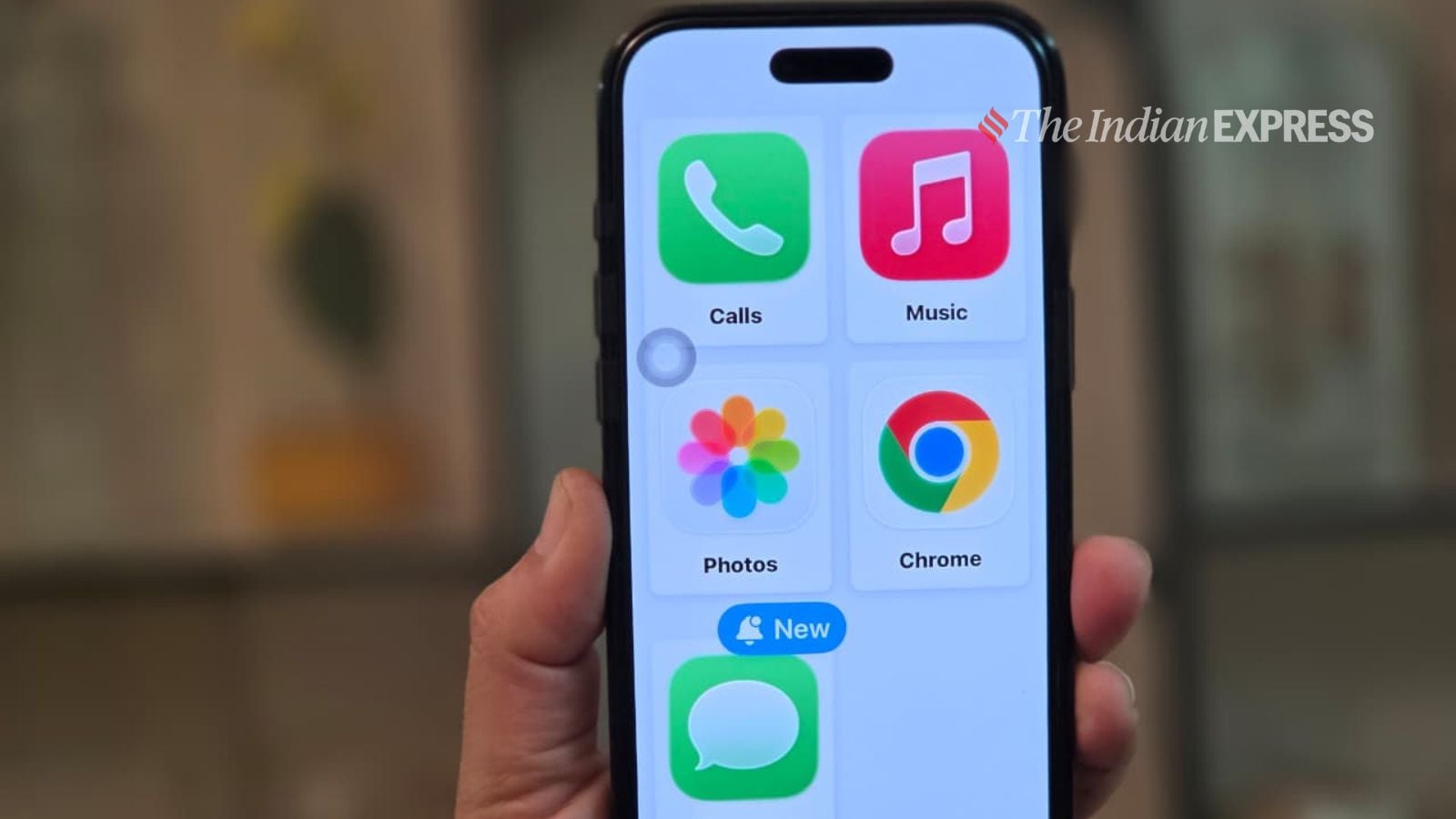
I am pretty sure you have never heard about the ‘senior mode’ on the iPhone. A few years ago, Apple introduced something called Assistive Access on the iPhone, which is basically a simplified user interface. Although this customisable interface is designed for those with cognitive impairments and manual dexterity issues, I found it useful for older adults and the elderly.
With Assistive Access, you can pare down the home screen to its basics, displaying apps in either a simple row format or a large tile format. Calls, Messages, Camera, Music, and Photos are currently optimised for Assistive Access. What’s great about this mode is that it limits swipe gestures, preventing users from unintentionally opening different menu screens.
However, this feature requires iOS 17 or later. To enable Assistive Access, open Settings > Accessibility. Scroll down and tap Assistive Access, then select Set Up Assistive Access. Tap Continue, choose Rows (list view) or Grid (large icons) for the app layout, and then customise the apps by selecting essential ones such as Calls, Camera, Photos, Messages, and Music. Set a passcode and start using it.
To exit ‘senior mode’, and return to the normal interface, triple-click the side button (or Home button on older models), tap Exit Assistive Access, and enter the dedicated passcode.
For Google Pixel users, however, there is a Simple View feature that you won’t find on any other Android smartphone. The feature increases text and icon sizes, adds navigation buttons, and makes the screen layout easier to use.
I have seen older people, especially those who are deaf or hard of hearing, struggle to get on a video call. The anxiety and nervousness are real. Thankfully, once you turn on Live Captions, which is already built into the iPhone. It’s free and it works.
Live Captions is a game-changing accessibility feature on the iPhone that shows real-time text of audio on your screen. It can transcribe phone calls, FaceTime, and other sounds playing on your device, including YouTube videos. To enable it, go to Settings > Accessibility > Live Captions. Once turned on, your iPhone uses on-device processing to display captions across apps. However, accuracy may vary, so it shouldn’t be relied on in high-risk or emergency situations. I wish Hindi or other regional languages were supported.
Android also has an equivalent Live Caption feature, which provides real-time, dynamic text captions for any speech played through your device. It works across phone calls, podcasts, videos, audio messages, and even recordings. To enable it, go to Settings > Accessibility > Captions > Live Caption, then turn on “Use Live Caption.” You can also add a shortcut in the volume control for quick access. English-to-Hindi language support is available.
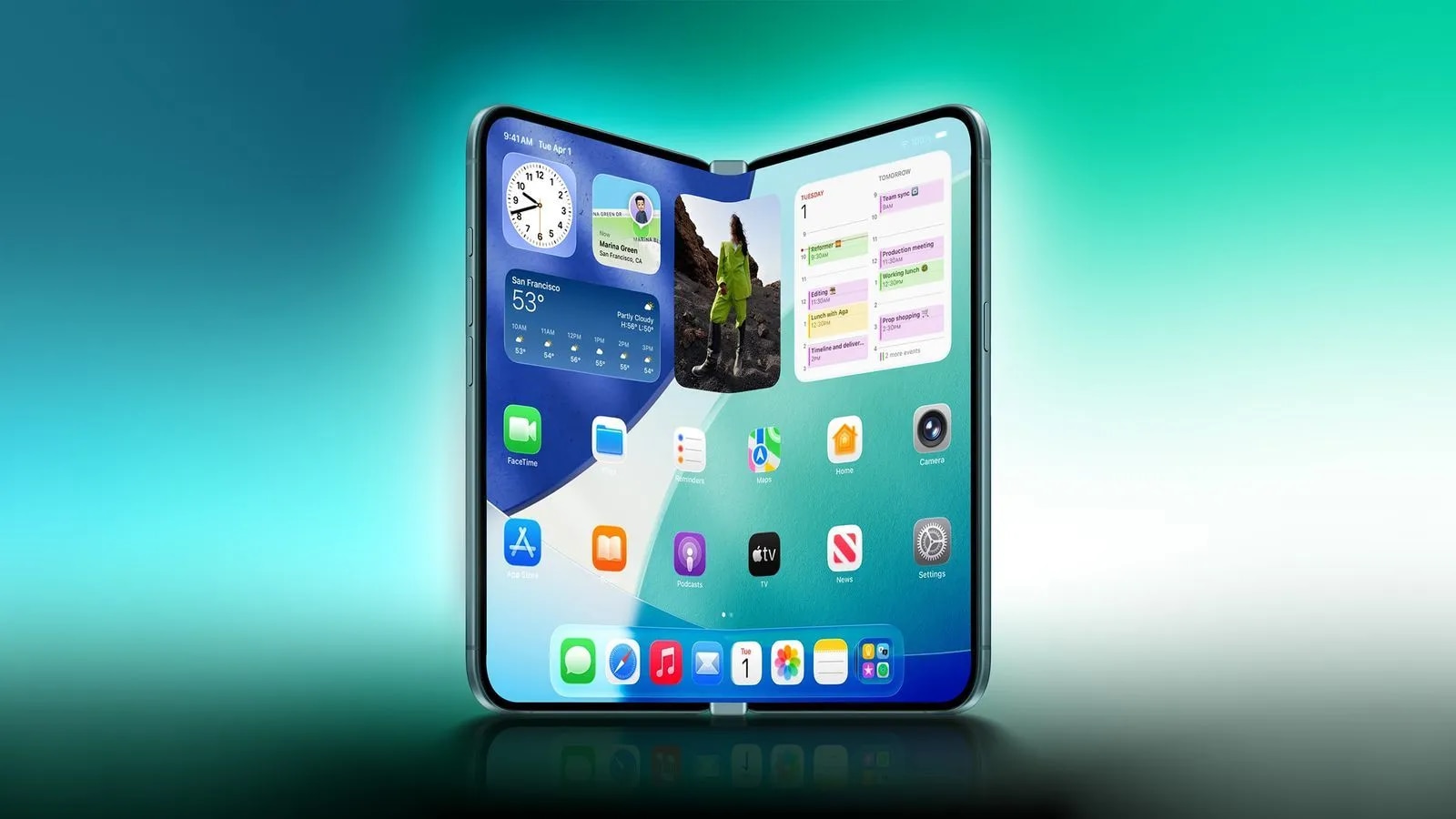
On my Google Pixel 10 Pro Fold, I recently discovered a lesser-known accessibility feature called “Select to Speak.” Although it is designed for users with visual impairments, I have become quite fond of it, especially when reading long-form articles. Simply put, Select to Speak reads text on your screen aloud. It helps users who struggle with reading or processing text and is especially useful for the elderly.
When enabled, you can use the accessibility shortcut to select text and have it read aloud. Turn it on by searching for “Select to Speak” in Settings, then use the on-screen button to tap or drag over text for playback.
Meanwhile, the iPhone offers a VoiceOver feature that reads and describes on-screen content. It relies on gestures. Tap once to select and double-tap to activate.
While people usually have colour vision deficiency from birth, many can develop colour blindness later in life. It can occur when various health problems damage either the cone receptors or the part of the brain that interprets colour.
Being colour blind does not mean one cannot see any colours; it simply means having difficulty identifying or distinguishing between them. If your parents have developed colour blindness, the iPhone has a black-and-white mode (or Greyscale, as it is called) in Settings under “Colour Filters” to reduce eye strain. It softens screen brightness and colours.
As an experiment, I’ve been using Grayscale mode for the past few days. I do not have colour blindness, but anyone who is addicted to their smartphone and wants to cut down on phone usage can use it, as I did. For the first few hours, it was difficult to adapt to the black-and-white mode, and I even had a headache.
Over the next few days, I adapted to Grayscale mode, and it felt more comfortable. Because of this mode, my phone usage was drastically reduced, and I started to experience less of the mindless scrolling I am used to on my phone. Sure, it can be difficult to permanently use Grayscale mode, but once you get used to it, switching back to normal mode can feel uncomfortable.
For Android users, Google offers a similar black-and-white mode in Accessibility settings under “Text and display.” Tap “Colour Correction” to choose filters.
For someone who has been writing about tech for years and is in his 30s, I have always wondered why marketers and brands don’t target their products at older adults and the elderly. All I see around me is a decisive push to get noticed by younger demographics. But here’s the reality: the real purchasing power lies in the hands of older adults. And here’s a fun fact – they don’t rely on credit cards or live paycheck to paycheck, unlike Gen Z.
I would love to see a shift in how brands target products for seniors in the future. My recent review of the Google Pixel 10a and the readers’ responses thanking me for bringing older adults into the tech conversation made me realise this even more clearly.
Accessibility is driving change in how technology is designed. That also brings me to a less-discussed aspect of tech: accessibility. It may not seem “cool” to some, but accessibility technology is the foundation of many mainstream technologies we use today. Things like Voice assistants, speech-to-text software, captions, and live transcription were designed for deaf and hard-of-hearing individuals. In fact, screen readers and high-contrast display modes were created to help blind and partially sighted users access digital content.
Over the past few years, with the help of nonprofits, think tanks, and governments, tech companies have been pushed to design their products around accessibility and inclusivity. The credit goes to stricter compliance mandates and legal pressure, which are proving to be catalysts for positive change in the tech industry. But a greater emphasis on designing products around accessibility is not only helping people with disabilities and the elderly – it’s making products better for everyone.
No wonder accessibility drives mainstream innovation, and those who include digital accessibility as a feature may benefit more than those who ignore it.
I am glad that modern devices such as the iPhone, Google Pixel, Android smartphones, Macs, and Windows PCs all have built-in accessibility features, although not everyone is aware of them. In fact, I use many accessibility features that may be designed for people with disabilities but benefit everyone.
This handy guide to accessibility tools is free on the devices you already use every day. They are accessible, though some can be found deep within the settings.
As I mentioned before, anyone can use these accessibility tools on smartphones and laptops, and they can especially benefit the elderly and seniors. If you have ageing parents, do try these settings. I hope these accessibility tools bring positive changes and make their lives easier.
I am pretty sure you have never heard about the ‘senior mode’ on the iPhone. A few years ago, Apple introduced something called Assistive Access on the iPhone, which is basically a simplified user interface. Although this customisable interface is designed for those with cognitive impairments and manual dexterity issues, I found it useful for older adults and the elderly.
With Assistive Access, you can pare down the home screen to its basics, displaying apps in either a simple row format or a large tile format. Calls, Messages, Camera, Music, and Photos are currently optimised for Assistive Access. What’s great about this mode is that it limits swipe gestures, preventing users from unintentionally opening different menu screens.
However, this feature requires iOS 17 or later. To enable Assistive Access, open Settings > Accessibility. Scroll down and tap Assistive Access, then select Set Up Assistive Access. Tap Continue, choose Rows (list view) or Grid (large icons) for the app layout, and then customise the apps by selecting essential ones such as Calls, Camera, Photos, Messages, and Music. Set a passcode and start using it.
To exit ‘senior mode’, and return to the normal interface, triple-click the side button (or Home button on older models), tap Exit Assistive Access, and enter the dedicated passcode.
For Google Pixel users, however, there is a Simple View feature that you won’t find on any other Android smartphone. The feature increases text and icon sizes, adds navigation buttons, and makes the screen layout easier to use.
I have seen older people, especially those who are deaf or hard of hearing, struggle to get on a video call. The anxiety and nervousness are real. Thankfully, once you turn on Live Captions, which is already built into the iPhone. It’s free and it works.
Live Captions is a game-changing accessibility feature on the iPhone that shows real-time text of audio on your screen. It can transcribe phone calls, FaceTime, and other sounds playing on your device, including YouTube videos. To enable it, go to Settings > Accessibility > Live Captions. Once turned on, your iPhone uses on-device processing to display captions across apps. However, accuracy may vary, so it shouldn’t be relied on in high-risk or emergency situations. I wish Hindi or other regional languages were supported.
Android also has an equivalent Live Caption feature, which provides real-time, dynamic text captions for any speech played through your device. It works across phone calls, podcasts, videos, audio messages, and even recordings. To enable it, go to Settings > Accessibility > Captions > Live Caption, then turn on “Use Live Caption.” You can also add a shortcut in the volume control for quick access. English-to-Hindi language support is available.
On my Google Pixel 10 Pro Fold, I recently discovered a lesser-known accessibility feature called “Select to Speak.” Although it is designed for users with visual impairments, I have become quite fond of it, especially when reading long-form articles. Simply put, Select to Speak reads text on your screen aloud. It helps users who struggle with reading or processing text and is especially useful for the elderly.
When enabled, you can use the accessibility shortcut to select text and have it read aloud. Turn it on by searching for “Select to Speak” in Settings, then use the on-screen button to tap or drag over text for playback.
Meanwhile, the iPhone offers a VoiceOver feature that reads and describes on-screen content. It relies on gestures. Tap once to select and double-tap to activate.
While people usually have colour vision deficiency from birth, many can develop colour blindness later in life. It can occur when various health problems damage either the cone receptors or the part of the brain that interprets colour.
Being colour blind does not mean one cannot see any colours; it simply means having difficulty identifying or distinguishing between them. If your parents have developed colour blindness, the iPhone has a black-and-white mode (or Greyscale, as it is called) in Settings under “Colour Filters” to reduce eye strain. It softens screen brightness and colours.
As an experiment, I’ve been using Grayscale mode for the past few days. I do not have colour blindness, but anyone who is addicted to their smartphone and wants to cut down on phone usage can use it, as I did. For the first few hours, it was difficult to adapt to the black-and-white mode, and I even had a headache.
Over the next few days, I adapted to Grayscale mode, and it felt more comfortable. Because of this mode, my phone usage was drastically reduced, and I started to experience less of the mindless scrolling I am used to on my phone. Sure, it can be difficult to permanently use Grayscale mode, but once you get used to it, switching back to normal mode can feel uncomfortable.
For Android users, Google offers a similar black-and-white mode in Accessibility settings under “Text and display.” Tap “Colour Correction” to choose filters.